You can download a report containing your member roster in your choice of two formats:
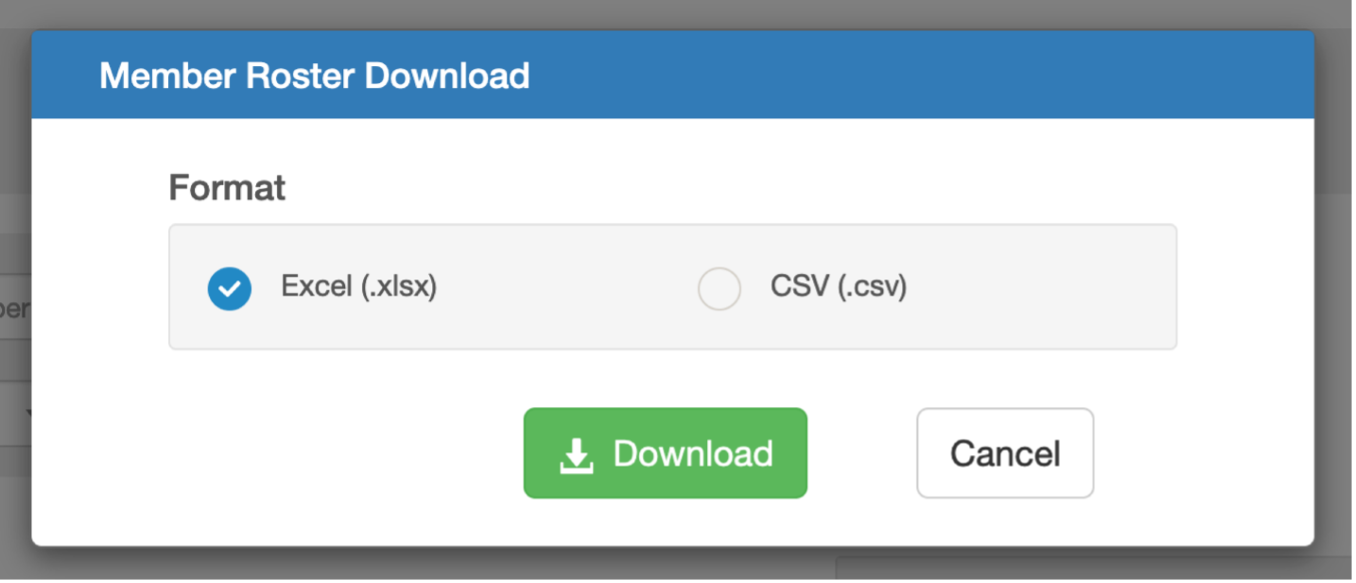
- Excel (.xlsx) - Choosing this default option, will result in the download of a report containing one Excel tab/sheet for each practitioner. Each tab will contain the members attributed to that practitioner.
- CSV (.csv) - Choosing this option will result in the download of a report containing all members for all practitioners in one tab/sheet, intended to give you the flexibility and convenience to sort, filter and view all members in one view based on your needs.
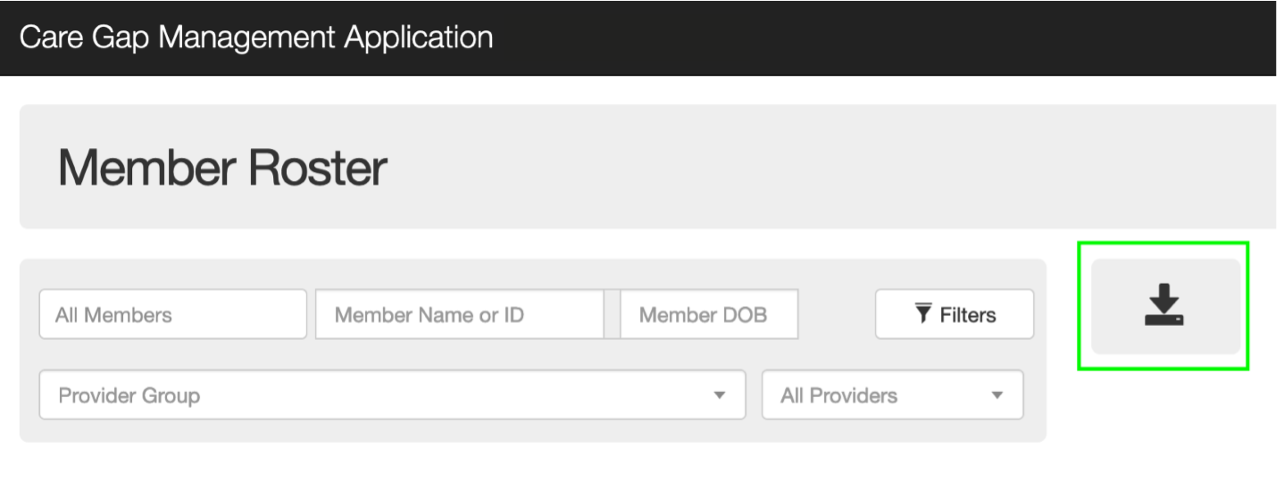
Begin by clicking the download arrow icon on the Member Roster tab. The download arrow icon is outlined in green below for emphasis.
A pop-up will appear, displaying the two report format choices available for your selection. This is shown below. The default choice is Excel (.xlsx).
Click the green Download button. What happens next depends upon the number of members that are in-scope for your report.
- If the number of records is relatively small, then your report will begin downloading immediately.
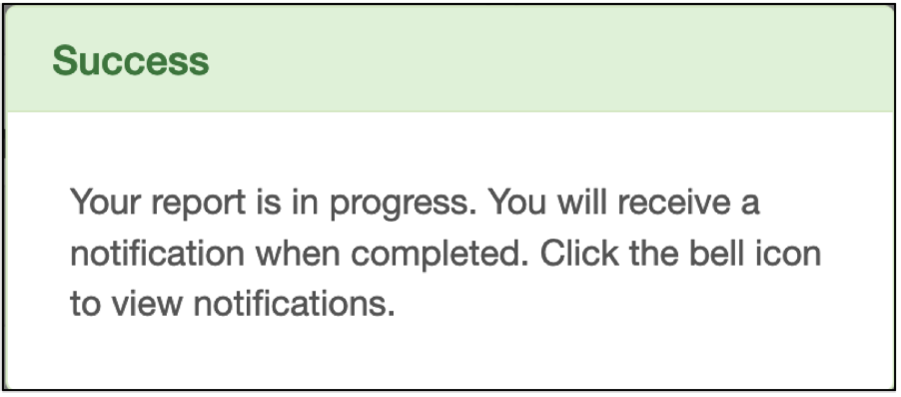
If the number of records is relatively large, you will see a message letting know that you will receive a notification in the CGMA when your report is ready to be downloaded.
Once your report is ready, you will see a new notification, with the Notifications bell appearing with a red badge.

Click the badge and you will see the Notification Center, and a listing showing a new notification letting you know your report is ready to be downloaded.
(For more information on Notifications and the Notifications Center, refer the user guide article titled Notifications and the Notifications Center.)
0 Comments